%20Logo%20(5)-1.png?width=160&height=80&name=v%20(Dark%20BG%20variant)%20Logo%20(5)-1.png)
Overview
Remote Unlock (WiFi Open) feature allows users to unlock doors from any location, without needing to be near the lock.
This requires a registered TTLock account
- Download the TTLock application on Android or iOS devices
- Access the TTLock Web System on desktop here
❗If you're using a third-party automation partner integrated with TTLock to manage access, remote unlock must be enabled.
❗This function can be performed from anywhere, so it's a good idea to consider the security implications before proceeding.
❗Lock must be connected to a gateway
❗To enable remote unlock, it must be activated in the settings for each lock. Follow these steps to turn on remote unlock.
Steps to remotely unlock from app
-
Select a lock from the main menu.
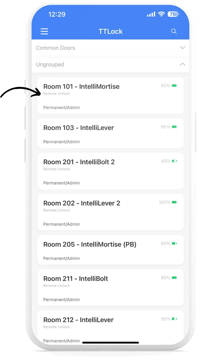
-
Tap on the small blue icon, then tap “Remote Unlock” when the confirmation prompt appears.
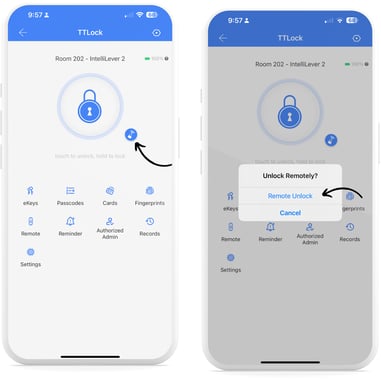
❗The large blue lock icon is used for opening with eKeys and requires the user to be connected to the lock via Bluetooth.
-
If remote unlock is successful, you will see a confirmation window.
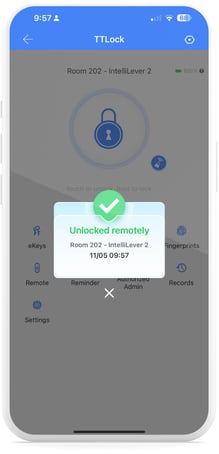
Steps to remotely unlock from web system
If Remote Unlock is already enabled for a lock, you will see a WiFi icon directly under the lock name. If not, follow these steps to turn on remote unlock.
- Click on the lock you want to remotely unlock.
- On the lock page, click on “Remote”, then click on “Remote Unlock”.
Instructional Video