%20Logo%20(5)-1.png?width=160&height=80&name=v%20(Dark%20BG%20variant)%20Logo%20(5)-1.png)
❗This requires a registered TTLock account
To access the gateways settings, log into the app and tap the Menu icon, then select “Gateway”
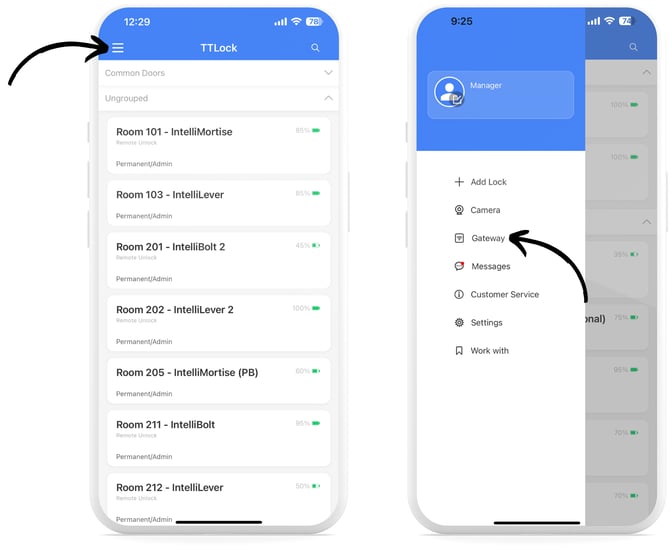
Gateway Menu
- Indicates the gateway type (G2, G3, G3P, G4)
- Indicates the gateway status
- Indicates the number of locks that are connected to the gateway
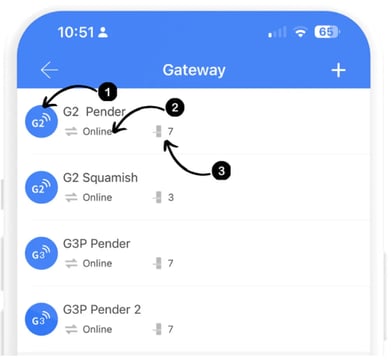
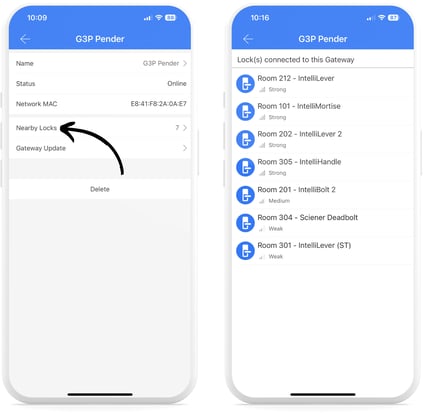
Gateway detailed view
Tap on one of the gateways to bring up a detailed view. From here you can do the following:
- Rename the gateway
- View the online status
- View the network MAC address
- View nearby locks
- Update the gateway firmware
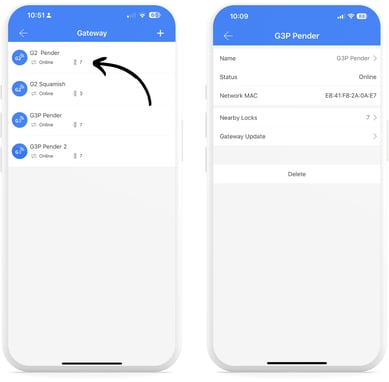
Gateway connection strength
Tap “Nearby Locks” to bring up a list of locks that are currently connected to the gateway. From here you can do the following:
- View the individual locks that are connected to the gateway
- View the connection strength between each lock and the gateway
❗Each lock can be connected to multiple gateways. A lock that is showing a “Weak” connection to one gateway, may be showing a “Strong” connection to another.
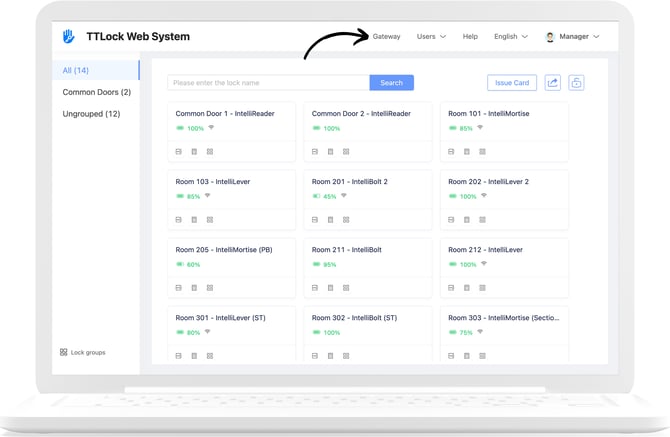
Accessing gateway settings through web application
Click “Gateways” on the top menu bar.