%20Logo%20(5)-1.png?width=160&height=80&name=v%20(Dark%20BG%20variant)%20Logo%20(5)-1.png)
Overview
When a new lock is added to an account, that account becomes the lock's administrator, with full control over lock settings and users. Each lock has only one administrator. An administrator can transfer a lock's administrator status to another account.
For example, an installer might add locks to their account and transfer status to their client after installation.
Authorized Administrators
The lock administrator can assign any other accounts authorized administrator status. Each lock can have multiple authorized administrators.
Authorized admin rights can be granted either temporarily or permanently. They can issue credentials like passcodes or eKeys to other users, but do not have the ability to add other authorized admins to the lock.
For example, a tenant can be granted authorized admin access to their own lock, allowing them to manage their own users while the building manager retains control and ownership of the lock.
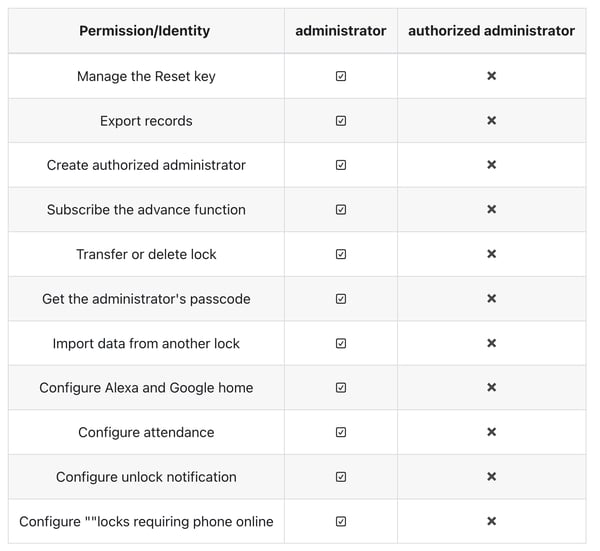
Understanding TTLock Administrator Permissions
Managing Administrators
Steps to transfer administrator/ownership of locks
- Follow the steps for transferring locks. Once you have transferred the lock to another account, you will no longer have access to the lock. To regain access, the new administrator must add you as an authorized administrator.
Steps to add an Authorized Administrator on TTLock Mobile App
- Select the lock from the main lock page then tap “Authorized Admin”. If this icon is not present, you are not the administrator of the lock.
- Permissions are displayed below each lock on the main menu. Locks labeled “Permanent/Admin” indicate that you are the administrator and can add authorized administrators.
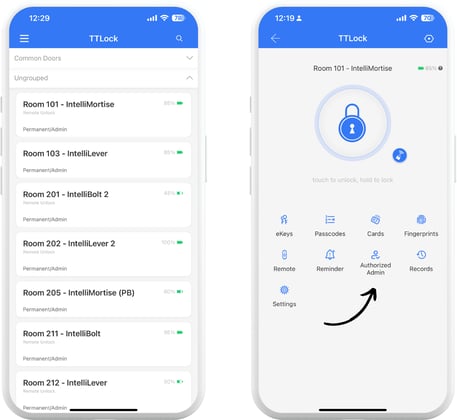
- Enter a phone number or email that is already registered to a TTLock account, then tap “Send”.
- Toggle “Manage their own users only” to prevent them from adding or deleting users other than those they have created. If toggled off, this user can delete users that others have created.
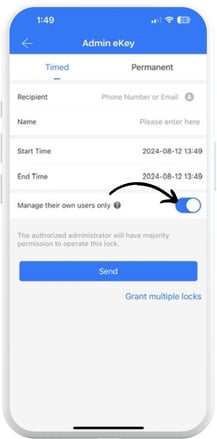
Steps to bulk add Authorized Administrators to a lock
❗Only available on the TTLock Web System here
❗Can only be performed by the lock administrator
- From the main lock page, click on the “eKey” icon for one of the locks you want to add an Authorized Administrator to
- If you want to add this Authorized Administrator to other locks too, click on the “+” icon and select all the locks
- Input the “Recipient Email”, “Name”, and select the “Type” of access
- The recipient email must already be registed with a TTLock account. If it is not registered, request the recipient follow Account Registration steps before proceeding.
- Click the “Authorized Administrator” toggle, along with “Remote Unlock” if applicable.
- The recipient TTLock account will be notified, and will see all locks when logging into their account