%20Logo%20(5)-1.png?width=160&height=80&name=v%20(Dark%20BG%20variant)%20Logo%20(5)-1.png)
Overview
When onboarding locks for the first time, it's best practice to configure a few key settings directly at each lock. While most settings can be configured remotely, these must be set in person.
❗This requires a registered TTLock account
- Download the TTLock application on Android or iOS devices
- Access the TTLock Web System on desktop here
❗Must be next to the hardware with Bluetooth enabled on your mobile device
❗Once you’ve added a lock, follow these steps below
How to initialize lock settings:
Select the lock you just added, then tap “Settings”.
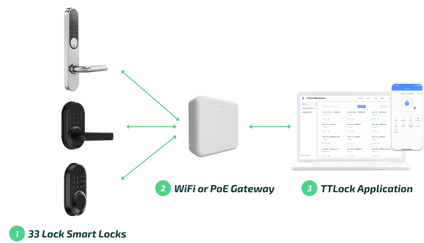
1. Update Lock Firmware
The locks come with factory-installed firmware and must be updated during onboarding to ensure optimal performance. Skipping this step could lead to reduced functionality and potential user experience issues.
2. Turn Remote Unlock On
This setting is required to be “On” in order to open the lock remotely from the app.
If you're using an automation partner or third-party integrator, this setting must be turned on in order to integrate.
3. Adjust Lock Sound
Set the lock to the desired volume. Keep in mind that disabling this setting may affect the user experience, as the sounds provide feedback when keys are pressed.