%20Logo%20(5)-1.png?width=160&height=80&name=v%20(Dark%20BG%20variant)%20Logo%20(5)-1.png)
Steps to add a gateway to the TTLock App:
-
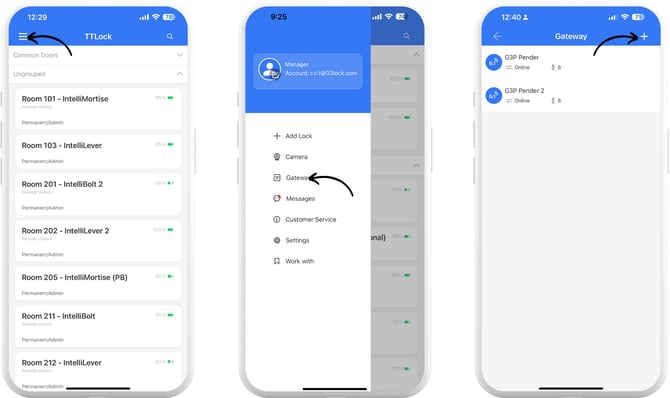
Log into the app and tap the Menu icon, select “Gateway” and then tap the “+” icon on the top right corner of the screen.
- Tap on the correct gateway model, and then physically connect the gateway to the power source (auxiliary or PoE). Once the gateway’s LED is flashing red and blue, tap “Next”.
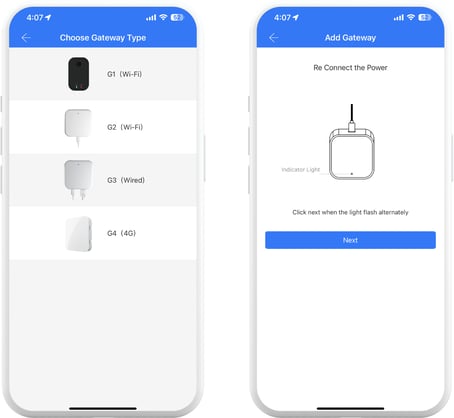
- The model is indicated on the label on the back of the gateway.
-
If the gateway isn’t connected to the app within 60 seconds of powering on, it will time out. To reset, unplug the gateway and plug it back in.
❗Because of this, it’s best to add one gateway at a time.
- The model is indicated on the label on the back of the gateway.
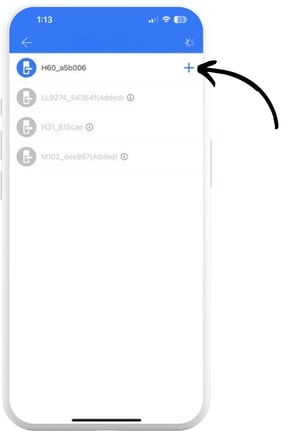
- Tap the “+” symbol beside the gateway. Once the gateway is connected, it will automatically connect with nearby locks. Connection strength can also be found here.
❗If adding a G2 gateway, you are required to select a WiFi network and enter the credentials. For G3 or G3P gateways, the device will automatically connect to the network.
The flashing blue light means the gateway has connected to the network.