%20Logo%20(5)-1.png?width=160&height=80&name=v%20(Dark%20BG%20variant)%20Logo%20(5)-1.png)
This requires a registered TTLock account
Adding cards
Adding access cards using your Smart Lock
❗Must be next to the hardware with Bluetooth enabled on your mobile device
- From the home screen, select a lock
- Tap “Cards”
- Choose if you want the card to be “Permanent”, “Timed”, or “Recurring”
- If “Timed” or “Recurring”, set the validity period
- Assign a name and tap next
- The lock will ask you to present the card
- Present the card against the front of the lock
❗Any lock can be used to add a RFID card into the system. Once the card is added, it can then be assigned to other locks using the TTLock Web Application.
If at this point you want to program this card onto other locks too, follow these steps:
- Log into the TTLock Web Application
- Click “Issue Card”
- Click “Sync Card” and the card you added to the lock will appear in the list
- Click “Issue” next to the card you want to program and then choose the locks that you want that card to be programmed to and click “OK”
Add a card using a card reader
❗TTLock Web Console only and lock must be connected to a gateway
❗The card encoder must be plugged in to a laptop or desktop computer, and the user must be logged into the TTLock Web Console.
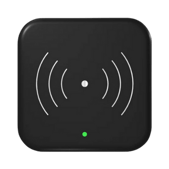
- From the home screen, click “Issue Card”
- Choose “Issue Card” from the menu bar
- Select one or more locks you want the card to be programmed to
- Name the card (it’s recommended to use an easy naming convention)
- Choose if you want the card to be “Permanent”, “Timed”, or “Recurring”
- If “Timed” or “Recurring”, set the validity period
- Click “Read Card”
- Tap the card on the card reader
❗Use the “Search” function to quickly identify any card registered in the system by tapping the card against the card reader.
Delete a card
❗Lock must be connected to a gateway
- From the home screen, click “Issue Card”
- Locate the card you wish to delete, then click “Door access”
- Select the locks from which you want to remove access
- Select the top box to remove access from all locks
- Click “Delete access”, then “OK”
- Confirm that the access has been removed from each lock
- Click “OK” to complete